1

Pin Conversation

Users can pin the important conversations, which then appear at the top bar. At a time, a maximum of eight conversations can be pinned. The pinned conversations will be always available for quick access and thus saves time to search for them from a long list of conversations. As the pinned conversations appear at the top, users will be instantly notified about any new incoming messages.
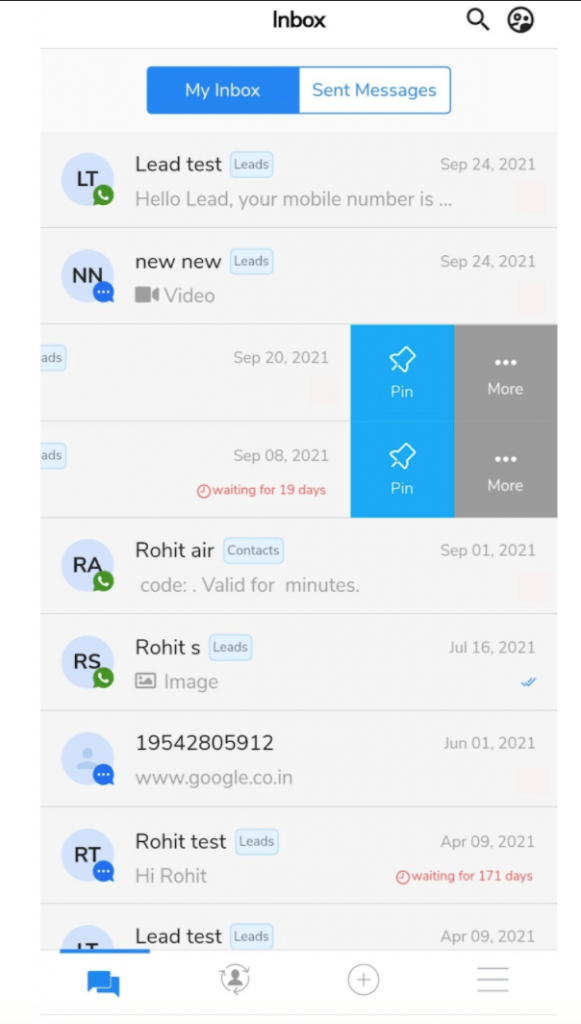
Pin Conversation
  • In the Inbox swipe left on a conversation(s)
  • Click on the ‘Pin’ icon
  • The selected conversations (up to 8) will be pinned as shown in the image below for quick access:
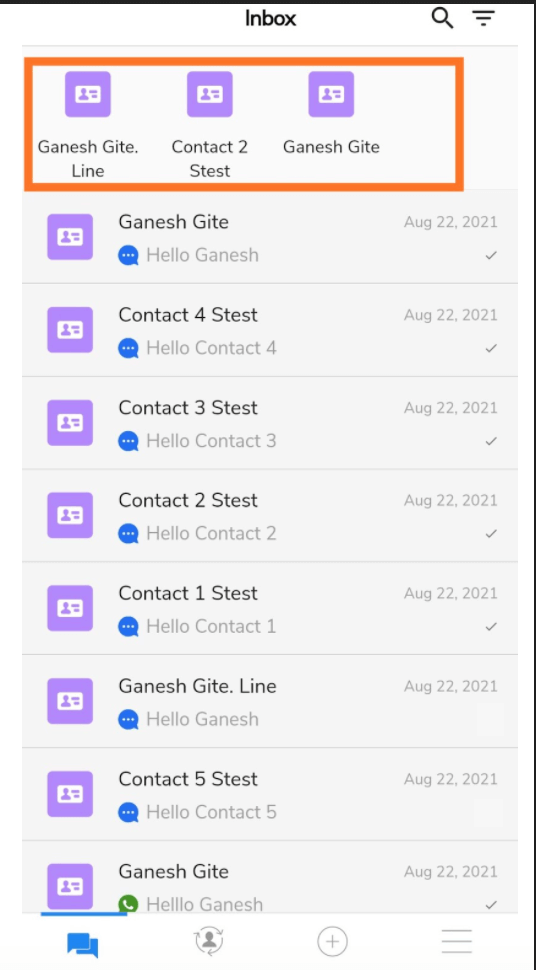
Pinned Conversation


Conversation Assignment

The application allows you to assign the conversation to another team member. Whenever a conversation is assigned to another user, it moves out from your inbox to the inbox of the assigned user. It is a great way to stay focused on the conversations relevant to you and control notifications.

Pin Conversation
  • In the Inbox swipe left on a conversation
  • Click on the ‘More’ option
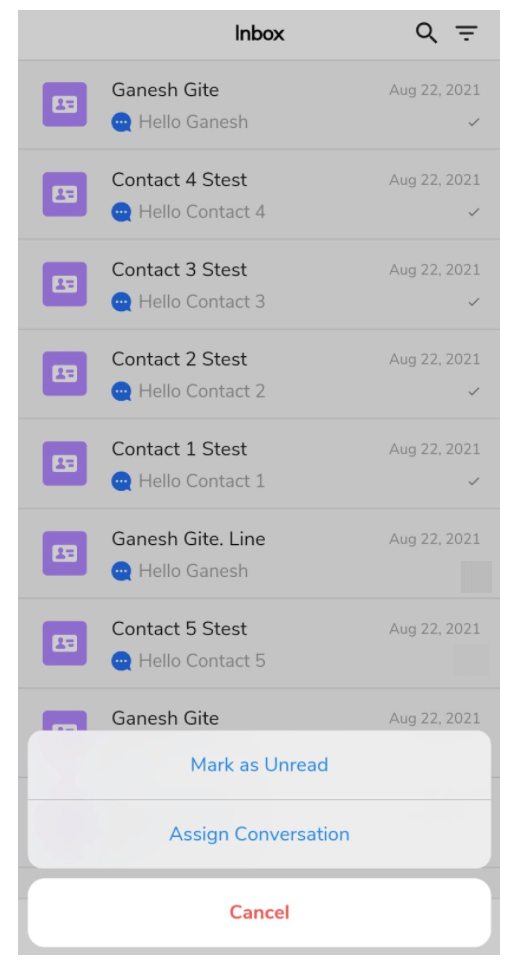
  • Select the ‘Assign Conversation’ option
Assign Conversation mobile

*Note: Long press on a conversation will also give this option


How to set header background image?

You can set global header background image under Appearance / Customize / Header with Header Background Image option.

You can override this image for Knowledge Base pages under Appearance / Customize / Knowledge Base with Header Background Image option and for FAQ pages under Appearance / Customize / FAQ  with Header Background Image option.

Also, if you set up a Featured Image for a regular page, it will be used as a header background for that specific page.


Mark as Read

The SMS-Magic Converse mobile app allows you to mark a conversation as read if you have read it and manage to take any action on it just as you do with your email inbox.  

Pin Conversation
  • In the Inbox Swipe left on a new or unread conversation
  • Click on the ‘More’ option
  • Select the ‘Mark as Read’ option

*Note: Long press on a new or unread conversation will also give this option


Mark as Unread

The SMS-Magic Converse mobile app allows you to mark a conversation as unread if you want to take action on it later. Smart actions to manage and respond to your recipients.

Pin Conversation
  • In the Inbox swipe left on a read conversation
  • Click on the ‘More’ option
  • Select the ‘Mark as Unread’ option

*Note: Long press on a read conversation will also give this option


Overview

The application allows you to send smarter SMS messages with emojis, merge fields, or ready-to-use templates. All this gives your customers a personal touch. The messages sent will adhere to the country-specific compliance that you have set in the Zoho CRM. 

Using the application you can send a message in an already existing conversation, select a contact from your database and send a message, start a new conversation, or send a message to an unknown number.

Initiate New conversation

Sending a message through the application is possible in many ways namely:

  • Sending a message from the inbox by selecting a contact 
  • Sending a message by selecting a contact from the list of Contacts 
  • Sending a message to an unknown recipient/number

All these ways of sending messages to known and unknown contacts are explained in detail in the following sections.


Sending a Message from Inbox

The mobile app allows you to send SMS and MMS messages from the inbox. Simply select a conversation from the inbox, use a message template or send a manual message to the recipient.

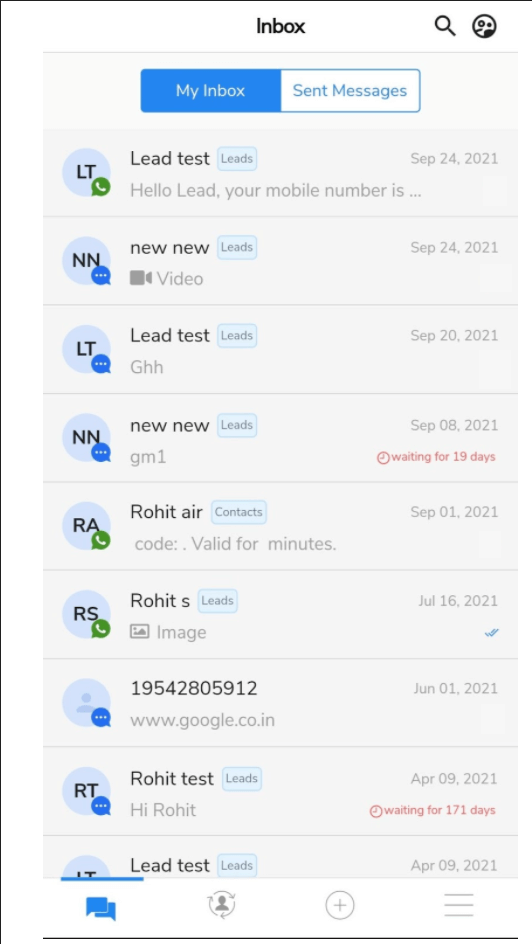
Mobile Inbox

Select a conversation from the Inbox to proceed

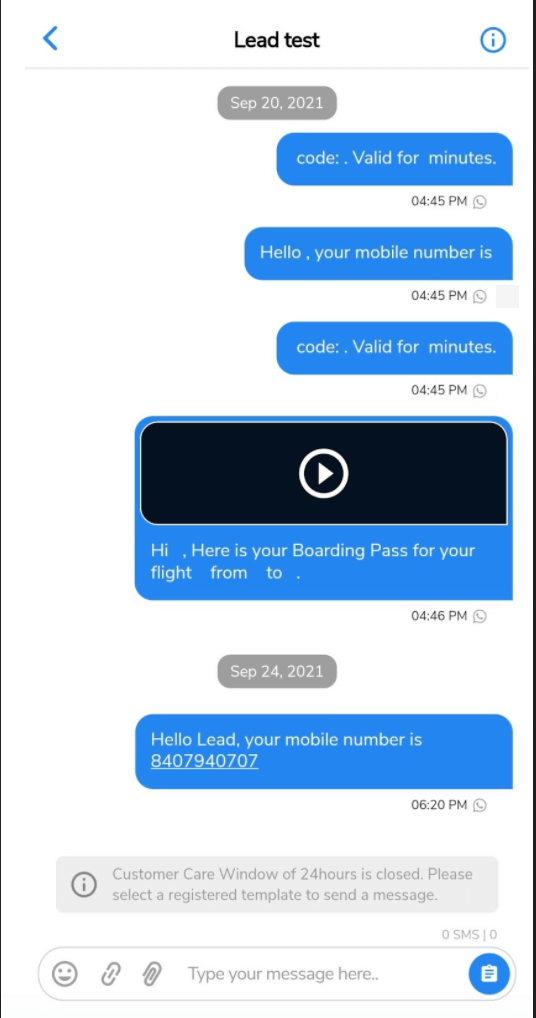
Select conversation in mobile inbox
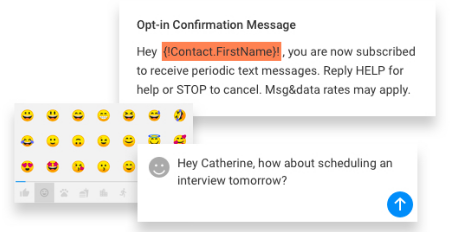
  • In the composer field, type your message. You can use the emoticon icon to add emoticons
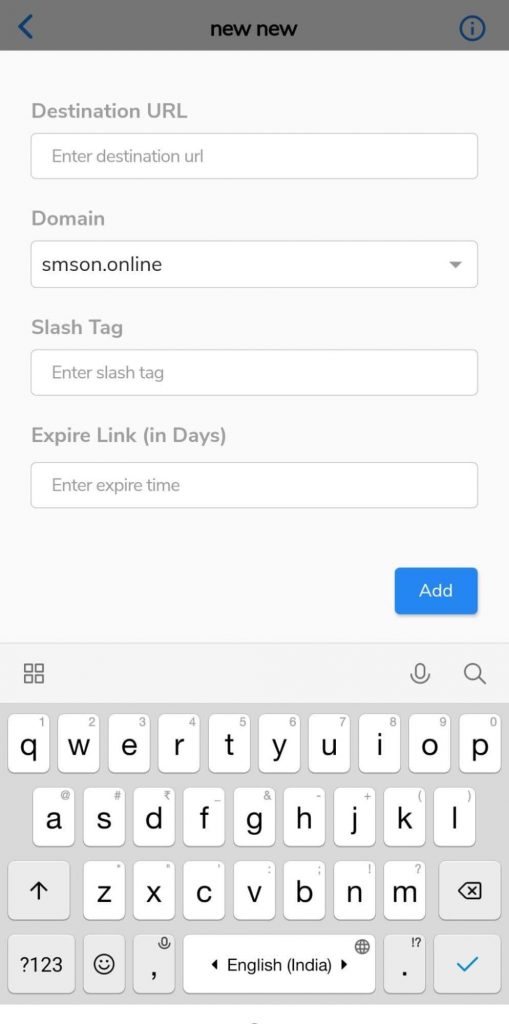
  • Click on the URL icon, next to the emoticon icon to add a short URL to your message. The following window will appear:
add short URL
  • Enter the destination URL address in the ‘Destination URL’ field. Select the domain from the ‘Domain’ drop-down list. Enter the slash tag in the ‘Slash Tag’ field. Enter the link expiry time in the ‘Expire Link (in Days) field. Click on the ‘Add’ button to create and add a short URL to your message.
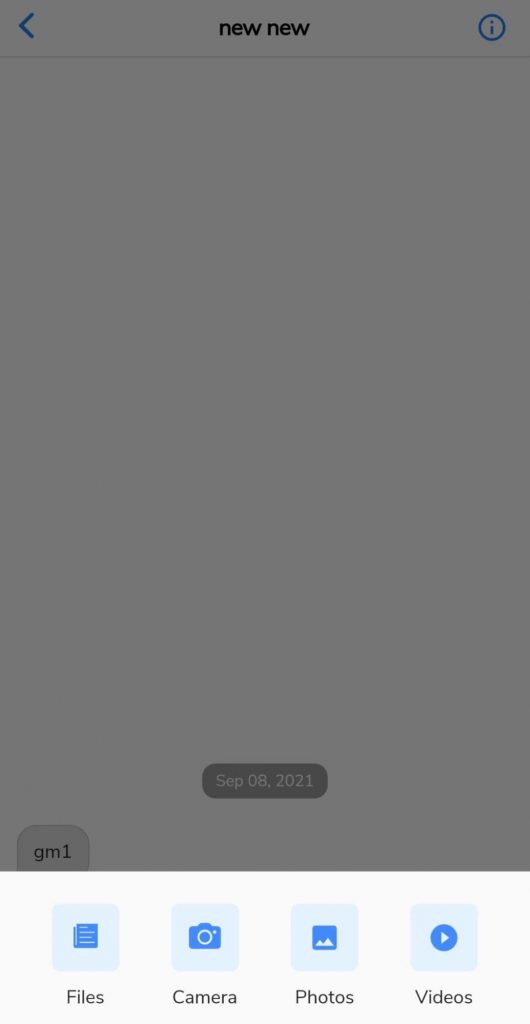
  • Click on the attachment icon to add attachments to your message. You can share files, photos, or videos as an attachment with your message. The following window will appear:
Add Attachment Mobile

Sending a Message to Known Contacts

Follow a few simple steps and start sending messages to your known contacts.

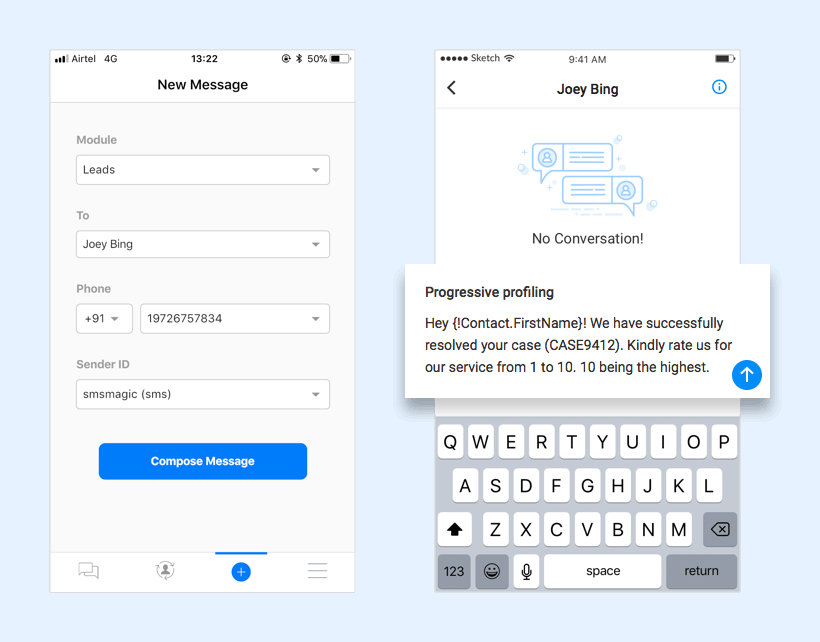
Sending messages to known contacts
  • Click on the New Message icon in the tab bar
  • Select the module from the drop-down list
  • Type the name in the ‘To’ field
  • The phone number of the recipient gets populated automatically in the ‘Phone Field’ as shown in the image above. If required, you can change it.
  • Select Sender ID from the drop-down list
  • Click on the Compose Message button
  • Compose and send a message. You can view the messages that you have sent in the Inbox.


Sending a Message to an Unknown Number

SMS-Magic Mobile App simplifies messaging and conversing with your clients. With the mobile app, it is possible to send a message to an unknown number as well. You can compose and send messages to someone who is not a part of your contact list.

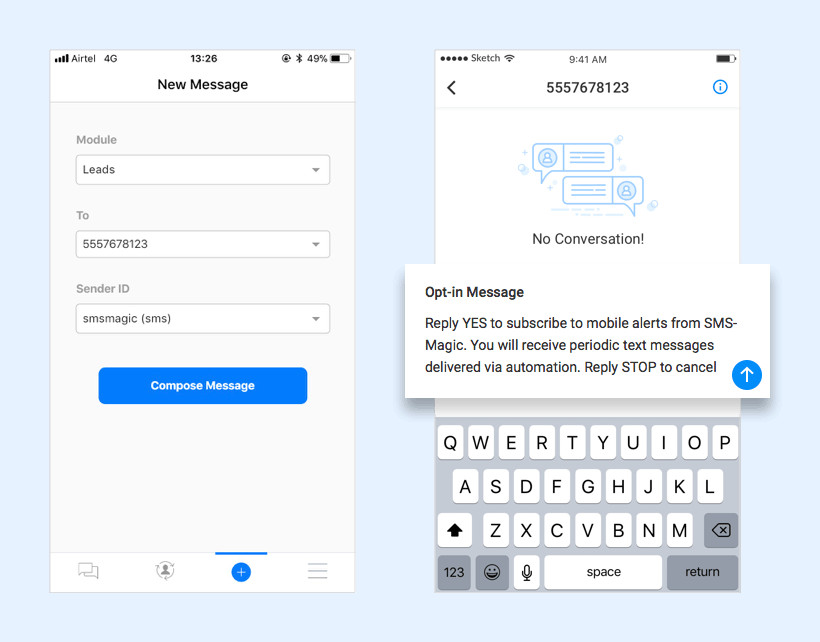
Send messages to unknown contacts
  • Click on the New Message icon in the tab bar
  • Select the module from the drop-down list
  • Enter the phone number in the ‘To’ field and select Sender ID from the drop-down list
  • Click on the Compose Message button 
  • Send the message. You can view the messages that you have sent in the Inbox.


Sending a Message by Selecting a Record from the List View of your CRM

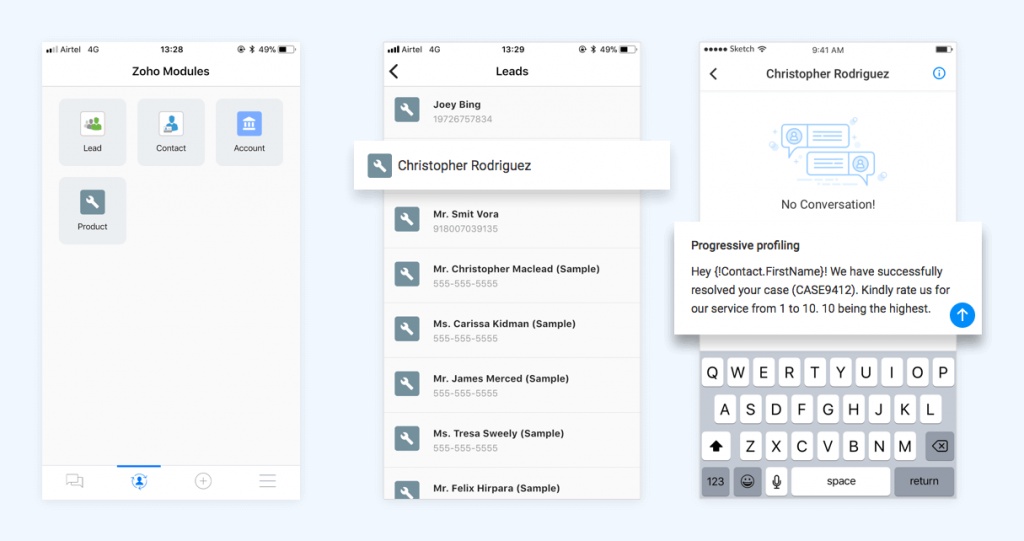
SMS-Magic Mobile App allows you to send a message by selecting a record from the modules of your CRM. All the modules that were configured in the Zoho account, immediately after signing-in, will appear here. Simply select the recipient from the contact list and start conversing by following the below steps:

Send messages by selecting crm list
  1. Click on the Modules List icon in the tab bar
  2. Select the Zoho module that you want to use to send messages
  3. Select the recipient from the list
  4. Compose and send messages


Install the App

This section describes all about how to install the mobile app in your Zoho environment. Download the app from the store by searching for SMS-Magic on the Apple App Store or Google Play Store. The app is completely free. Install and launch it just like any other app on your smartphone.

Play store