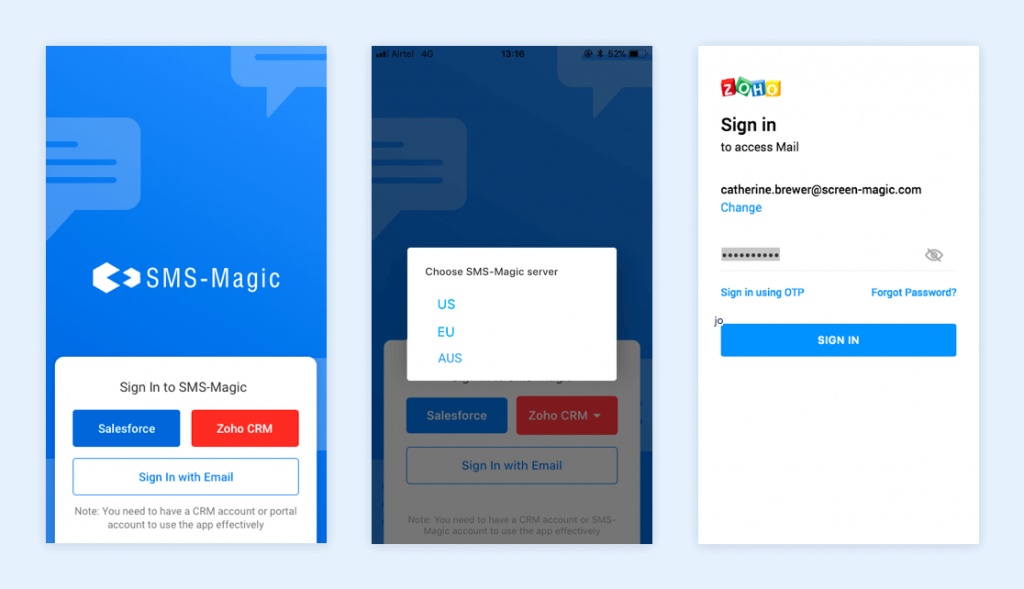
After you install the SMS-Magic mobile app on an Android or iOS device, sign in to the application using valid credentials and start conversing seamlessly. To sign in to the SMS-Magic mobile app, users can use their Salesforce, Zoho, or Email credentials.
Here you need to use your Zoho credentials to sign in to the app and start conversing with your customers by sending SMS messages manually or through templates.
Click on the ‘Zoho CRM’ option. The user will have to first select either the U.S., EU, or AUS SMS-Magic server.
Enter your email address or mobile number in the next step and click on the ‘Next’ button to proceed
Enter the password in the ‘Enter Password’ field
Click on the eye icon to view the entered password
Click on the ‘SIGN IN’ button to proceed
In the next step, you will have to accept the server access request. Click on the ‘Accept’ button to proceed. By clicking on the accept button you allow the SMS-Magic EU server to access the data on your Zoho account.
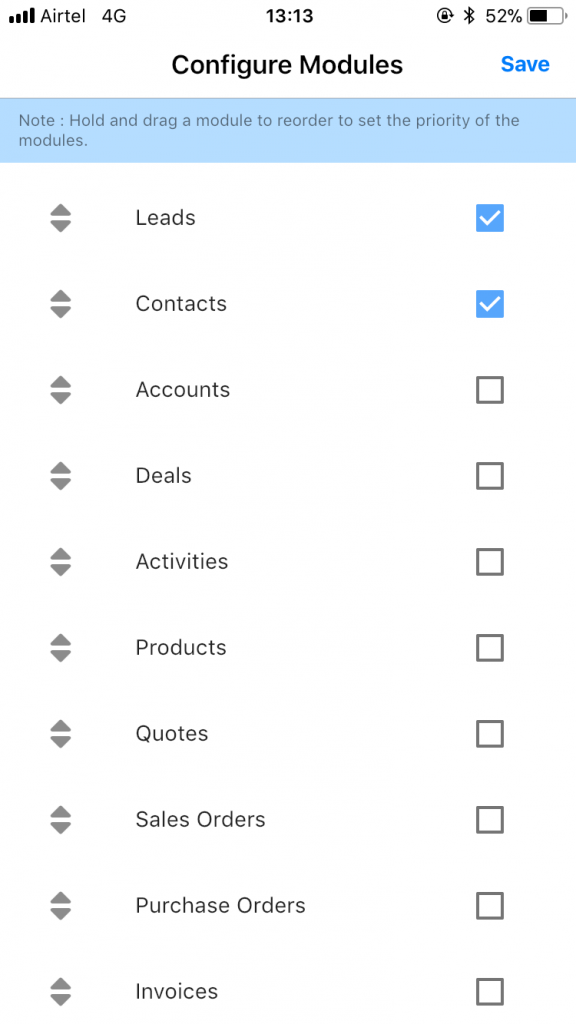
Once the user is logged in to the mobile app using Zoho credentials, they will first have to configure modules from the available list. Here, users will have to select the modules which they want to use for messaging. Click on the checkbox beside modules such as leads, contacts, accounts, deals, activities, products, quotes, sales orders, purchase orders, invoices, campaigns, meetings, calls, tasks, notes, etc. Select the required modules and click on the ‘Save’ button. You can hold and drag the modules to reorder their priority. The selected modules will be present in the ‘Zoho Modules’ section in the mobile app.
*Note: To log in to the SMS-Magic app on a mobile phone the user needs to have a SMS-Magic Zoho license
Overview
|
SMS-Magic offers an enhanced digital experience on Android and iOS. The mobile app allows businesses to carry their virtual number everywhere using their mobile devices and converse with their leads, prospects, or customers. All conversations will be recorded in Zoho CRM for further reference.
SMS-Magic Mobile App is a business text messaging app that is powered with the following features:
Engage with your customers on the go
Get real-time notifications of incoming messages from known and unknown contacts and send timely responses
Assign customer conversations to team members and view updated customer conversations
Access the objects and list views and send messages
Converse with multiple customers with one Inbox, respond to customer queries instantly, and win more deals
Tech Specifications
|
Before you download and install the mobile app on your Android and iOS, read through the following tech specifications:
Current Version: 2.9.0
App Size: 9.82MB Android, 40.8MB iOS
Required Android Version: 4.1 and above
Required iOS Version: 8.0 and above
Offered By: Screen Magic Mobile Media Pvt. Ltd.
Updated On: 26th September 2021
Pre-requisites
|
You need to use the Converse desk for Zoho to use the SMS-Magic Mobile App. Before you start conversing with your customers using the SMS-Magic mobile app, make sure to fulfill the following prerequisites:
Install the mobile app on your iOS or Android device
Customers should have an active SMS-Magic account with an active plan
Users need to have an SMS-Magic Zoho license
SMS-Magic application basic setup should be completed in the Zoho CRM
Message credits should be available to send SMS
Licensing
|
Currently, this App is bundled with an active SMS-Magic plan and is accessible to all the users with an SMS-Magic license. You need to configure all your users in the ‘Zoho’ to get started.
Overview
|
SMS-Magic is a complete solution to do business messaging via multi-channels such as WhatsApp, SMS, MMS, and Facebook The primary target user personas/end-users are Sales and Marketing Representatives and Service Agents. For many businesses, these are on-field users, who prefer an easy-to-use mobile app to converse with their customers.
With SMS-Magic Mobile App, you have continuing, personalized seamless conversations, regardless of the channel. Go multichannel via WhatsApp, Facebook Messenger, SMS, and MMS and start conversing seamlessly with your leads, customers, and prospects from anywhere.
Engage customers on the go and from anywhere with the SMS-Magic Mobile App. Here is what you get:
Enable sharing of images, files, videos, and live photos for a richer messaging experience
Give your employees the flexibility to assist customers from their own devices
Ensure data privacy and regulatory compliance while managing customer expectations
Real-time push notifications for increased customer engagement and improved user retention
Sync data between CRM and mobile and start/tag conversations with campaign leads, opportunities, candidates, cases, etc.
Now you can give your customers the ability to offer a personalized customer experience beyond a desktop, i.e. via SMS-Magic Mobile App. Stay in tune with your CRM, converse with campaign leads, opportunities, candidates, cases, etc. and keep your customer conversations always on through multichannel messaging.
Your customers won’t need to install anything! Users can send messages from the SMS-Magic mobile app while customers receive them as text messages. You can install the SMS-Magic Mobile app from Google Play Store or Apple App Store:
Overview
|
Conversation is an interactive communication between two or more people. It is a thread of messages between customers and agents. It is important to track these messages to monitor and streamline the customer relationship journey of your business.
Converse Desk provides you an intuitive, easy-to-use interface. It features a familiar inbox style, making it simple for users to begin messaging with little or no training. The Converse Desk also features intelligence that guides users to effectively manage and respond to any volume of messaging conversations.
Converse Desk can now be accessed from within Zoho CRM using the Converse Desk Web Tab as well as from the SMS-Magic Web Portal.
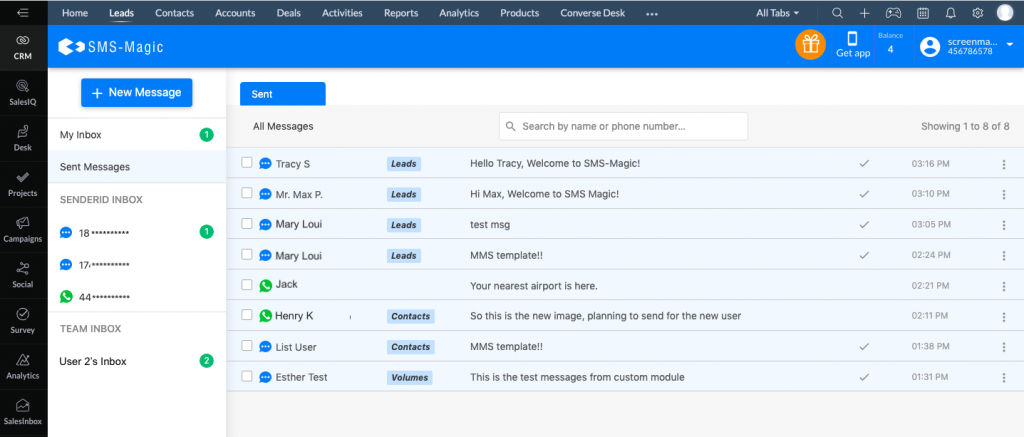
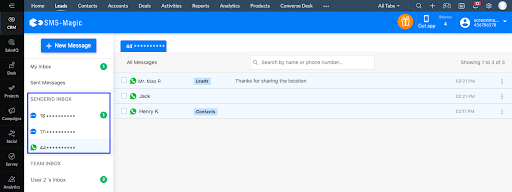
You can send SMS and WhatsApp messages over Converse Desk. You can identify SMS and WhatsApp Conversations easily via the SMS and WhatsApp icons as seen in the screenshot below.
Initiate a New Conversation
|
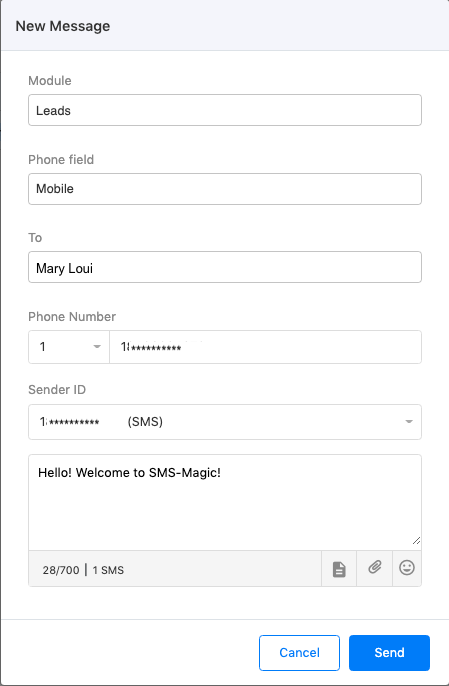
You can initiate a new conversation using an existing Zoho CRM customer record or type in a Number directly without adding the same in Zoho CRM.
To initiate a message with a customer, whose record is available in Zoho CRM, follow the below steps –
Select Zoho CRM Module to which the customer record belongs
Select the Phone field, the field which has the phone number/mobile number of the customer, in the selected Module
Type in your name in the Full Name field. (Customer suggestions are displayed while typing a name)
Select the Country Code (ISD Code) from the dropdown and type in the Number. For example, Select 1 for USA and type in 85********. (This is auto-populated if a Customer record is selected from existing Zoho CRM records)
Select Sender ID
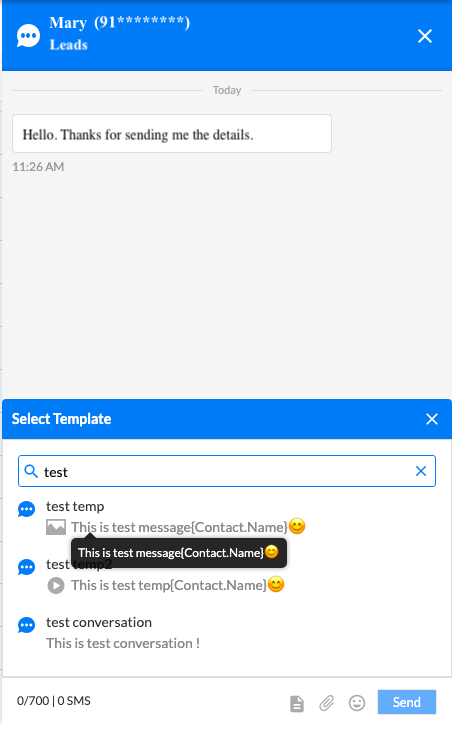
Type in a Message or use pre-defined Templates to converse. You can search from the available Conversation type templates for the selected Channel.
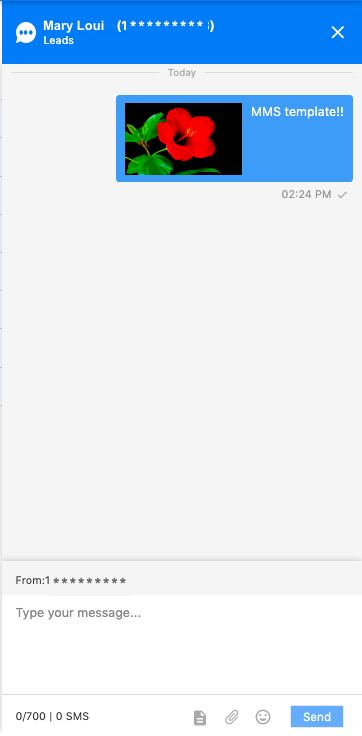
You can add Media files and Emoticons to your message
Click on the ’Send’ button
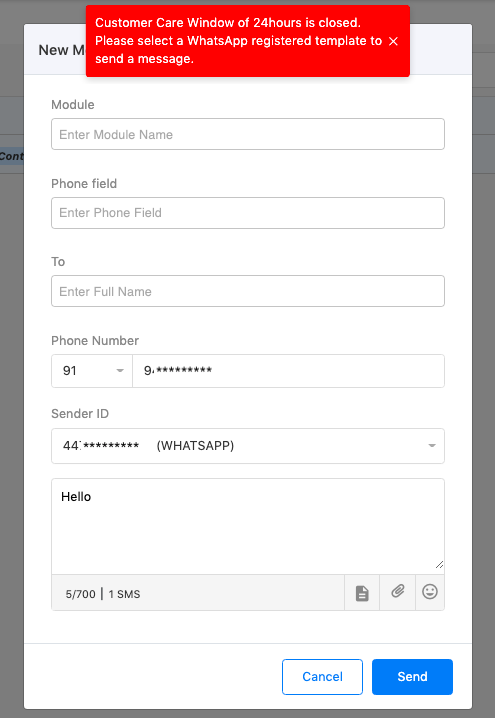
If you are initiating a conversation with a customer via WhatsApp channel, you can send a registered WhatsApp template. Make sure that you have already uploaded the consent of the customer in Consent Management.
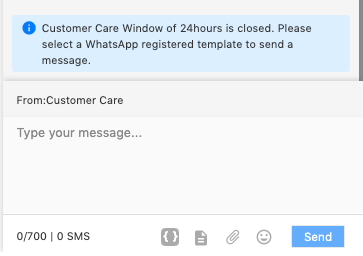
If you send a custom message or select a non-registered WhatsApp template, you can get an error in case the Customer Care Window of 24hours with that customer is closed.
Inbox
|
My Inbox
All your conversations with at least one incoming message will appear in My Inbox.
For the Sender ID/s owned only by you, all the incoming messages will be shown in your Inbox.
In the case of Shared Sender ID, i.e., when a Sender ID is shared with one or more Standard Users, the incoming message will be added in the conversation from which the last message was sent using that Sender ID.
For messages coming from an unknown recipient for the first time, the messages will be synced to i.e. shown in the Admin user’s inbox. Other incoming messages will be shown in the inbox of the user who last sent an outgoing message or was assigned the conversation.
Sender ID Inbox
Along with the Inbox, where you see all your conversations in one place, we provide you with a Sender ID inboxes, filtered to show the conversations happening on a single Sender ID. You will see separate Sender ID inboxes for each Sender ID if you own/have access to more than one Sender ID.
Team Inbox
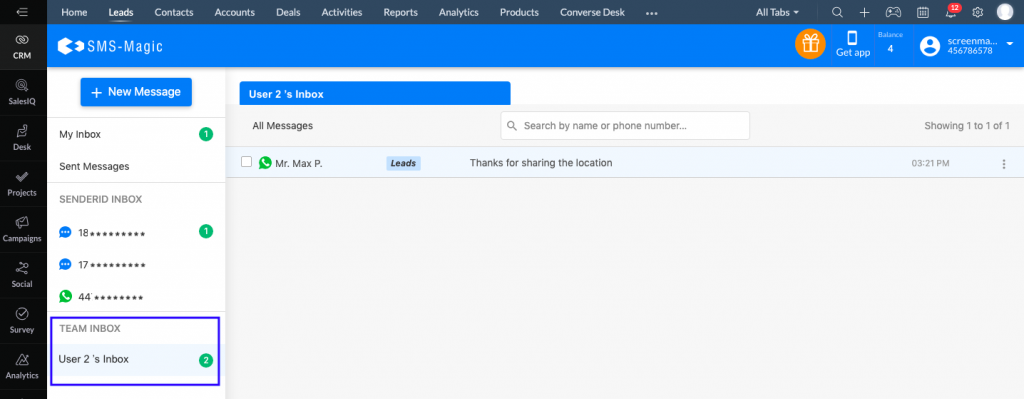
This feature enables the Admin user to view the Inbox of all the Standard users. This way, the Admin user is aware of all the customer conversations done by the agents (standard users).
All the Standard users who have a Portal license, their Inbox will be listed under Team Inbox. Admin Users can click on a Standard user’s Inbox to see the conversations done by that standard user.
A standard user cannot see the Team Inbox section in Converse Desk.
Manage Conversations
|
You can manage your conversations and take a few actions as per your need for one or more conversations.
Conversation Window
This is a chat interface to communicate easily with a customer. You can see the outgoing and the incoming messages in a selected conversation. Follow the below steps to open the conversation window for a conversation and start chatting.
Click on the conversation in My Inbox/Sent Messages/Team Inbox you wish to view or send a message. You can identify the conversations with a particular customer by their name on the conversation and the module their record belongs to in Zoho CRM.
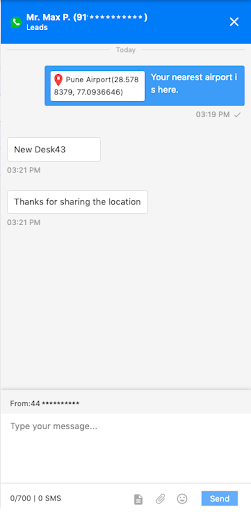
You can view the outgoing and incoming messages in this conversation so far separated with Date and Time
You can type in your message in the compose box, at the bottom of the Conversation Window and Send the message
You can use Media files and Emoticons while composing the message
You can use saved Message Templates of type Conversation. You can search from the available list of templates.
You can see the status of the sent messages update on the window. The status can be interpreted as-
Single tick – Message Sent successfully
Double tick – Message Delivered
Blue Double tick (for WhatsApp) – Message Read by the recipient
Red Triangle Icon – Message not sent
Clock Icon – Message is queued. This can be because of the network traffic or when you try sending a message outside the set Business Hours.
Conversation over SMS Channel
For having a conversation with your customers via the SMS channel, you can send text or media messages over the SMS channel to your customer.
Conversation over WhatsApp Channel
For conversing with your customers via WhatsApp channel, during an Active Customer Care Window, you can send text or media messages over WhatsApp to your customer. You can select WhatsApp registered or non-registered templates to send the messages.
In case, your Customer Care Window is closed, you will not be able to send a custom message. You can only send a WhatsApp registered template.
You need to have Opt-In Consent uploaded/received on SMS-Magic Web Portal’s Consent Management, to send WhatsApp Registered Templates.
Search for Conversations
You can type in Name or Mobile Number to search a conversation in My Inbox and Sent Messages. Hit Enter or click on the Search Icon to begin the search.
Read/Unread Conversation/s
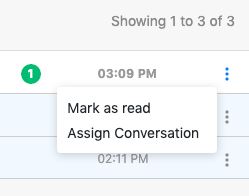
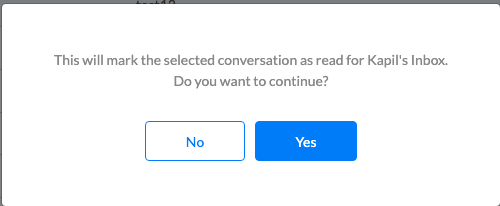
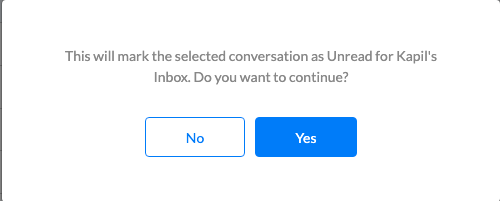
You can mark your conversations as Read/Unread in My Inbox and Sent Messages. Select one or more conversations to mark them as Read/Unread.
Admin Users can read the conversations in Team Inboxes without affecting the read status of the conversations for the Standard User’s Inbox.
Admin users can manually read/unread a conversation in the Team Inbox to change the status of the conversation in the Standard User’s Inbox. A confirmation dialog appears as shown below.
Assign Conversation/s
Admin Users can assign one or more conversations from My Inbox and from Inboxes of Standard users to any other standard user.
You can select the standard user you want to assign the conversation to from the dropdown in the Assign Conversation dialog box.
Once the conversation is assigned, it will be moved to the assigned user’s Inbox, thus transferring the ownership of the conversation to the assigned user. The assigned conversation/s will be marked unread in the User’s Inbox so that the user can easily identify the new conversations in their Inbox. A notification of the assignment will also be visible to the standard user on the browser tab when Converse Desk is open.
Conversations are created in Converse Desk, only when an incoming is received on the sent Campaign message
Messages are not sent to opted-out recipients
Messages are not sent outside business hours
You cannot delete conversations
Limitations:
If a Zoho CRM record is newly created, it might not immediately show up in the Auto-Search while sending a message through New Message Window
If a Zoho CRM record is updated, it will not get updated on Converse Desk
If a Zoho CRM record is created/updated just a few minutes before you receive a message initiated by your customer, the Customer Record Lookup in Zoho CRM will not be successful. This is because the latest update is not sent over by Zoho in API response immediately. These conversations will show the mobile number of the customer instead of their name.
Glossary:
Customer Care Window – A WhatsApp messaging session starts when a user sends your business a message and lasts for 24 hours in the most recently received messages window. This active window is the Customer Care Window. You can send regular text messages or media messages (i.e., any non-template messages) in this 24-hour active window.
Registered WhatsApp Template – Registered WhatsApp Template messages are pre-approved message templates called MTMs for outbound notifications such as delivery alerts and appointment reminders. They cannot be used for marketing. You must use a WhatsApp Template Message if more than 24 hours have elapsed since the user last responded to you. Any other type of message will fail.